
Ever opened your phone’s settings and gasped a little at how much space one app is eating up? Yeah, same. That confusion is usually the first time most people actually stop and think about app storage: what it means, why it happens, and whether they should be worried about it. Turns out it’s not some mysterious tech wizardry. It’s just how your apps keep the stuff they need close by so they can run without falling apart.
And it’s not a small problem either. A Tom’s Guide reader poll from 2026 found that storage complaints split almost evenly between two causes; 42% blamed their photo library, 41% blamed app cache quietly piling up in the background. Together that’s 83% of the “why is my phone full again” headache, and app storing sits right in the middle of it.
This guide walks through the whole thing in plain language. No jargon dumps, no pretending you need a computer science degree to understand where your gigabytes went.
What Is App Storing? And How Does It Work?
At its simplest, app storing is the process of an application saving data on your device (or somewhere connected to it) so it can function properly. That could be your login details, your game progress, cached images, downloaded videos, or the actual code that makes the app run in the first place.
Think about a music app. The app itself takes up some space just existing on your phone. Then it stores your playlists, maybe some offline downloads, your login session, and a bunch of temporary files it uses to load songs faster. All of that combined is what we mean when we talk about app storing.
It’s not one single thing happening in one single place either. Depending on the app and the device, storage gets split across a few different zones, which is exactly what trips people up. You check “Storage” in your settings, see three or four categories per app, and think, wait, what’s the difference between all these?
Where Do Apps Store Data?
There isn’t just one storage location. Apps are actually pretty flexible about where they tuck away information, and the choice usually comes down to what the data is for and how quickly it needs to be accessed.
Internal Device Storage
This is the built-in storage on your phone or tablet – the stuff you paid for when you picked 128GB over 64GB. Most apps default to storing here because it’s fast and always available, no matter your internet connection. Your app’s core files, its database, and a good chunk of your personal data usually live here.
External Storage and SD Cards
Some Android devices still support external storage, like microSD cards. A handful of apps let you move certain files- photos, downloaded media, large game assets- onto that card to free up internal space. iPhones don’t really do this since Apple ditched expandable storage a long time ago, so this section mostly applies to Android users.
Cloud Storage
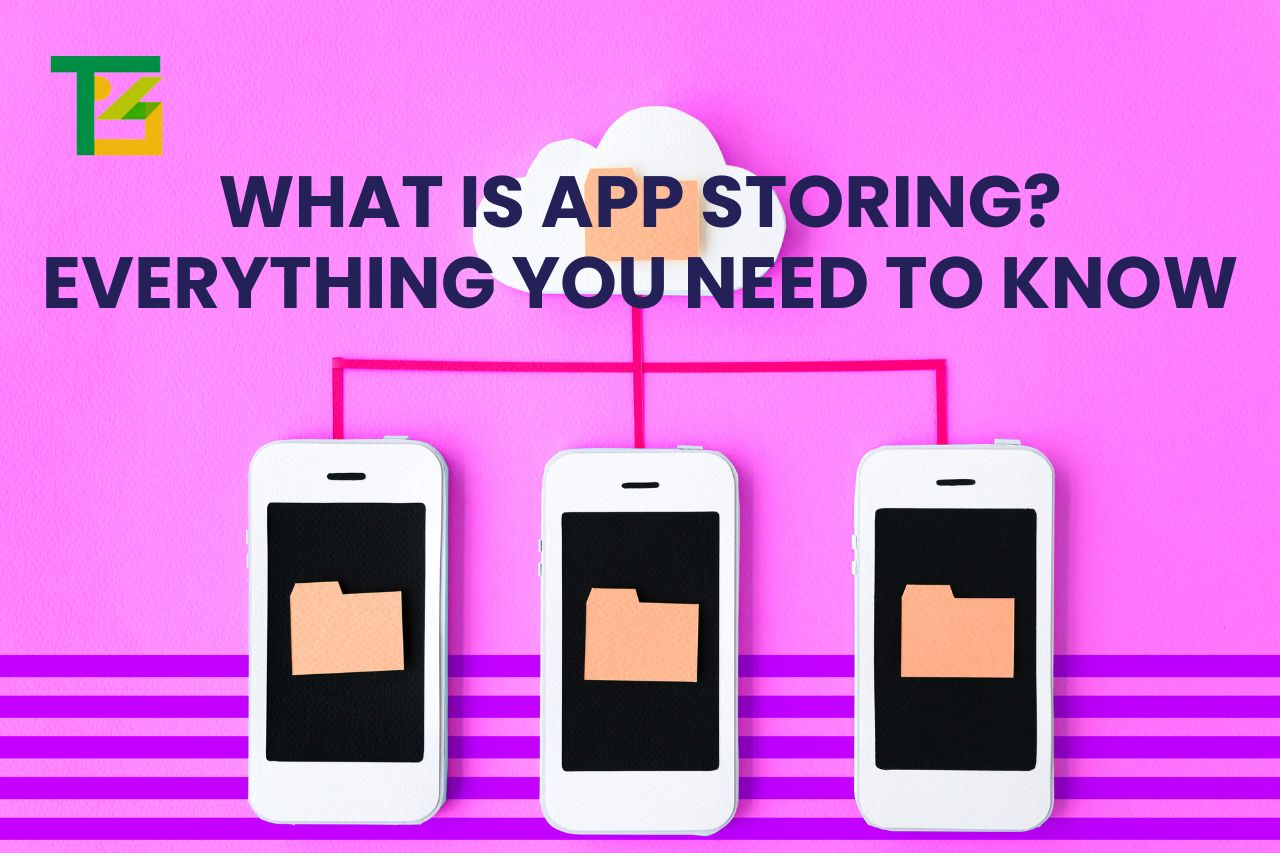
Instead of keeping everything on the device, plenty of apps now rely on cloud storage. Your photos app backing up pictures to iCloud or Google Photos is a good example. This way, even if you lose your phone or wipe it clean, your data isn’t gone; it’s sitting on a server somewhere, waiting for you to log back in.
App-Specific Storage
Every app also gets its own private little corner of storage that other apps generally can’t touch. This is where preferences, cached data, and app-specific files live. It’s part of what keeps your phone secure; one app can’t just go rummaging through another app’s storage folder.
Also Read: Top 10 Mobile App Development Companies
What Types of Data Do Apps Store?
Not all data is created equal, and apps end up hoarding several different kinds:
- User data: your account info, saved preferences, messages, notes, whatever you personally put into the app.
- Media files: photos, videos, music, and documents you’ve uploaded or downloaded.
- Cache files: temporary data meant to speed things up, like thumbnails or partially loaded pages.
- App code and resources: the actual program, fonts, icons, and assets that make the app work.
- Databases: structured info the app needs to function, like a shopping app’s product catalog or a to-do app’s task list.
Some of this is essential. Delete it and the app breaks or forgets who you are. Other parts, like cache, are more like clutter; helpful in small doses, annoying once it piles up.
App Storage vs App Data vs Cache: What’s the Difference?
People mix these three up all the time, and honestly, the naming doesn’t help. Here’s a quick breakdown so it actually makes sense.
| Term | What It Means | Can You Delete It? |
| App Storage | The total space the app occupies, including the app itself, its data, and cache combined | Only by uninstalling the app |
| App Data | Information the app needs to function; logins, settings, saved files, progress | Deleting it may log you out or reset the app |
| Cache | Temporary files stored to make the app load faster | Yes, safely, in most cases |
So when your phone says an app is “3GB,” that number usually includes all three layers stacked together. Clearing cache shrinks that number a bit without actually touching your account or saved progress. Clearing data is riskier; it often wipes your settings or logs you out entirely.
How Much Storage Does an App Need?
This depends entirely on the app, and the range is honestly wide. A simple flashlight app might need less than 20MB total. A mobile game with high-res graphics and voice acting can easily demand 2-4GB, sometimes more once you factor in updates and downloaded content packs.
Social media apps tend to grow over time even if you don’t add anything yourself, since they’re constantly caching images and videos as you scroll. Navigation apps that store offline maps can also balloon quickly, especially if you’ve downloaded multiple regions.
There’s no universal number here. If you’re planning storage on a new device, it’s worth checking a few of your most-used apps individually rather than assuming some flat average.
Why Do Apps Take Up So Much Storage?
A few reasons, really, and they usually stack on top of each other:
Updates add features, which means more code, more assets, more everything. An app that started at 40MB three years ago might be 400MB now, purely from accumulated updates.
Cache builds up the more you use an app. Every image loaded, every page visited, gets tucked away so it loads faster next time. Multiply that by months of daily use, and it adds up fast.
Downloaded content- offline videos, saved podcasts, downloaded maps- is often the biggest single contributor, and it’s usually stuff you chose to download, even if you forgot about it.
Some apps are bloated by design, packing in features most people never touch that still take up space.
How to Check App Storage on Your Device?
Checking this isn’t complicated, though the exact steps differ a bit between Android and iPhone.
How to Check App Storage on Android?
Go to Settings, then Apps (or Apps & Notifications, depending on your device brand), tap the app you’re curious about, and select Storage. You’ll see a breakdown of app size, data, and cache, usually with a button to clear cache right there.
How to Check App Storage on iPhone?
Head to Settings, then General, then iPhone Storage. Give it a second to load; it scans everything, and you’ll get a full list of apps sorted by size, along with the option to offload or delete apps you’re not using.
How to Find Apps Using the Most Storage?
Both storage menus sort apps from largest to smallest by default, so the biggest offenders show up right at the top. It’s usually not surprising; photo-heavy apps, streaming services, and games tend to dominate that list on most people’s phones.
How to Free Up App Storage?
If your device is running low, there are a few practical moves:
Clear cache on the apps eating the most space; this is safe and usually doesn’t affect your login or saved data. Delete apps you haven’t opened in months; you can always reinstall later if you need them. Offload unused apps on iPhone, which removes the app but keeps its data, so reinstalling brings everything back instantly. Move downloaded media, like offline videos or saved music, off your device once you’ve watched or listened to it. And check for duplicate photos or old backups sitting in storage-heavy apps like camera or file-sharing tools.
None of these requires deep technical knowledge. It’s mostly just going through and being a bit ruthless about what you actually still use.
What Is Cloud App Storage?
Cloud app storage shifts the burden off your device and onto remote servers instead. Instead of keeping every photo, document, or backup locally, the app uploads it and keeps a lighter, cached version on your phone. Google Drive, Dropbox, and iCloud all work this way.
The upside is obvious; your device stays lighter, and your data survives even if your phone dies or gets stolen. The tradeoff is that you need an internet connection to access everything, and depending on the provider, free storage tiers fill up faster than you’d expect.
Also Read: Banking App Development: Everything You Need to Know Before You Build
Is App Storing Safe?
Generally, yes, though it depends on the app and what it’s storing. Reputable apps encrypt sensitive data and keep it walled off from other apps on your device, which is central to how modern phone operating systems are built.
That said, storing apps carelessly- meaning giving unnecessary permissions or downloading from sketchy sources- can expose your data to risk. Sticking to official app stores, reading permission requests before accepting them, and keeping apps updated goes a long way toward keeping things safe.
It’s also worth being a little sceptical of apps that ask for way more storage access than their function seems to require. A calculator app doesn’t need access to your entire photo library, and if it’s asking, that’s worth questioning.
How to Manage App Storage Effectively?
Managing app storage isn’t a one-time cleanup; it’s more of an ongoing habit. Check your storage settings every couple of months instead of waiting until your phone fills up and starts complaining. Clear cache on heavy-use apps regularly instead of letting it build up for a year straight. Be honest about which apps you actually use versus which ones you downloaded once and forgot about. And lean on cloud backups for anything irreplaceable, like photos, so local storage isn’t the only copy.
Managing and storing apps this way keeps your device running more smoothly and saves you from that dreaded “storage almost full” notification popping up at the worst possible moment.
What Happens When You Delete an App?
Deleting an app typically removes the app itself along with most of its locally stored data. But what happens to that data afterwards depends on how the app was built. Some apps sync everything to the cloud first, so reinstalling later brings your account, settings, and history right back as if nothing happened. Others store everything locally only, meaning deletion is permanent: your progress, saved files, whatever, all gone for good.
Check this before you delete anything important. A quick look at the app’s settings or help section usually tells you whether your data backs up automatically.
Conclusion
App storing isn’t as complicated as it first looks once you break it down into its actual pieces – internal storage, cache, cloud backups, and app-specific data all playing slightly different roles. Understanding the difference means you’re not just blindly deleting apps and hoping for the best when your phone runs low on space. A little regular maintenance, checking your storage settings now and then, clearing cache instead of ignoring it, and being thoughtful about which apps actually deserve a spot on your device, goes a long way toward keeping things running smoothly without losing anything you actually care about.
FAQs
Does clearing app cache delete my account or progress?
No, in almost all cases, clearing cache only removes temporary files. Your login and saved data stay intact.
Why does an app’s storage size keep growing even if I don’t use it much?
Background updates, cached notifications, and automatic syncing can all add to an app’s footprint even during light use.
Is it safe to move apps to an SD card?
For most apps, yes, though some system-critical or security-sensitive apps won’t allow this option at all.
What’s the difference between offloading and deleting an app on iPhone?
Offloading removes the app but keeps its data, so reinstalling restores everything. Deleting removes both the app and its data entirely.
Do all apps use cloud storage?
No. Some apps rely entirely on local storage, especially simpler utility apps that don’t need to sync data across devices.